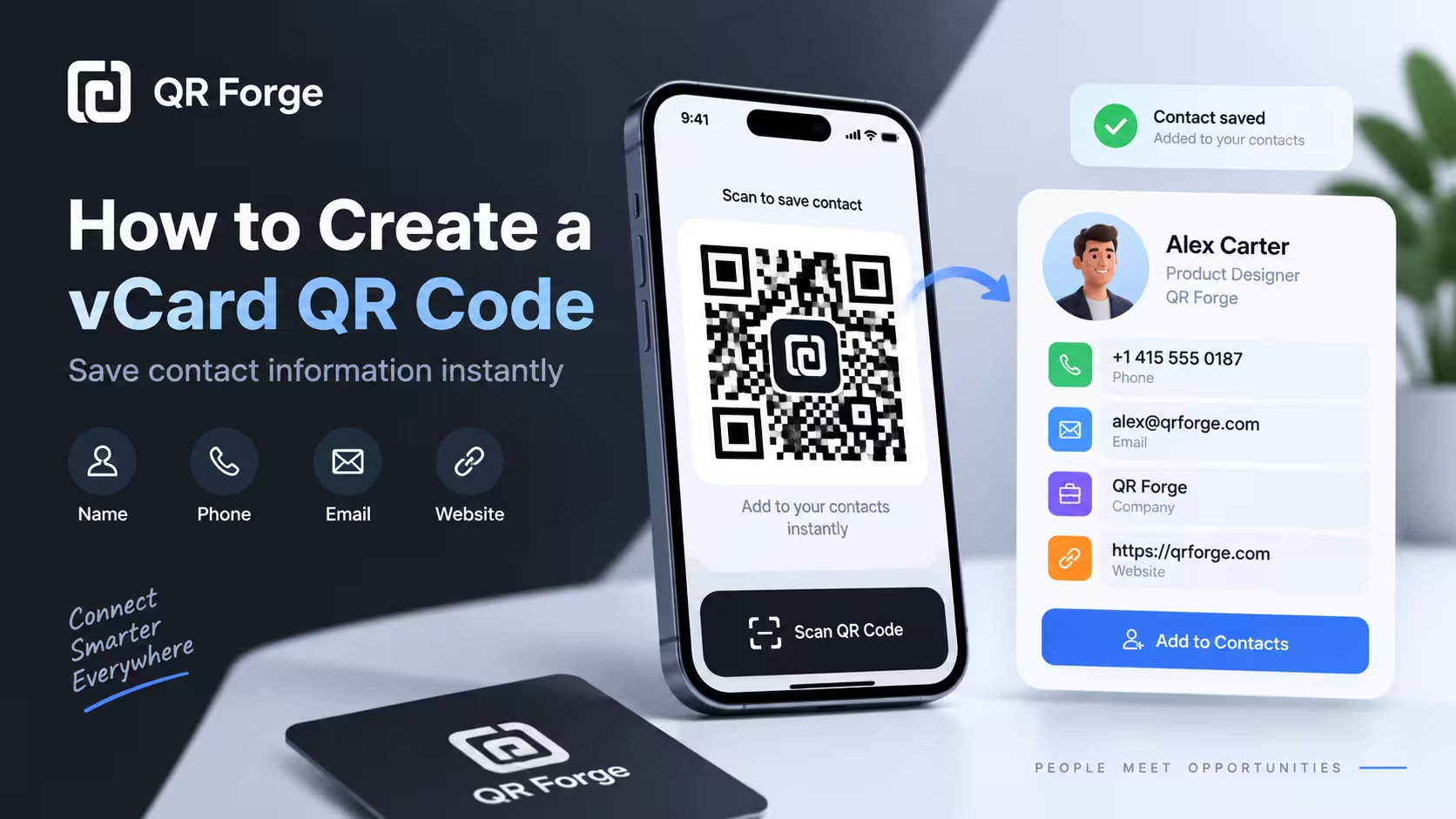
A vCard QR code makes it easy for someone to save your contact details without typing them manually.
Instead of scanning a QR code that only shows text, a compatible phone can recognize the contact format and offer to save the details as a real contact entry.
That makes vCard QR codes useful for business cards, networking events, conference badges, sales materials, booths, printed portfolios, and any situation where you want people to save your contact details quickly.
Create a vCard QR code
Generate a static QR code that lets users save your contact details on a compatible device.
What is a vCard QR code?
A vCard QR code is a QR code that stores contact details in a structured vCard format.
It is designed for contact saving
A plain text QR code might only display a phone number or an email address.
A vCard QR code goes further by packaging multiple contact fields in a format that contact apps can understand.
It can include multiple contact fields
A vCard QR code can include:
- first name
- last name
- organization
- phone number
- email address
- website
- address
The user still confirms the save action
Scanning the QR code should not silently add a contact without user confirmation.
A compatible phone usually shows a contact preview first.
A vCard QR code is best when the goal is to help users save contact details, not just read them on screen.
How to create a vCard QR code in QR Forge
QR Forge includes Contact as one of its QR Content Types, so you can enter contact details, customize the QR design, preview the result, and export the QR code from one screen.
Step 1: Enter the contact details
Open the main generator and choose the Contact or vCard content type.
Then fill in the fields shown in the Enter your details panel.
In the current QR Forge interface, the example contact form includes:
- FIRST NAME
- LAST NAME
- ORGANIZATION
- PHONE
- WEBSITE
- ADDRESS
The example shown uses:
First name: John
Last name: Doe
Organization: Kris Dev
Phone: +1 234 567 8900
Email: jhon@getqrforge.site
Website: https://getqrforge.site
Address: US
These fields are enough to create a practical contact QR code that can be saved on a compatible phone.
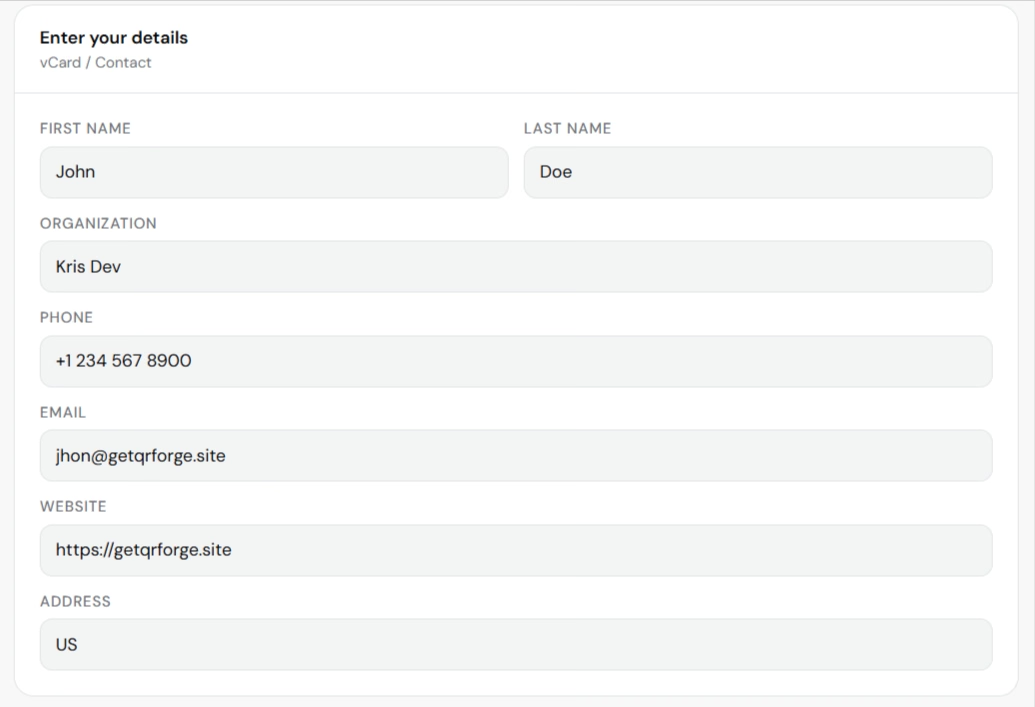
Fill in the core contact fields you want other people to save.
Step 2: Review or choose a style preset
After entering the contact details, you can customize the QR code design in the same generator.
QR Forge provides several main areas, including:
- Style
- Logo
- Size & QR
- Templates
- Batch
- Tools
- Randomize
In the current example, the Style tab is open and shows Style Presets such as:
- Classic Black
- Soft Rounded
- Ocean Blue
- Neon Gradient
- Corporate Dark
- Minimal Light
- Sunset Gradient
- Tech Purple
A preset gives you a fast starting point, and you can still refine the result afterward.
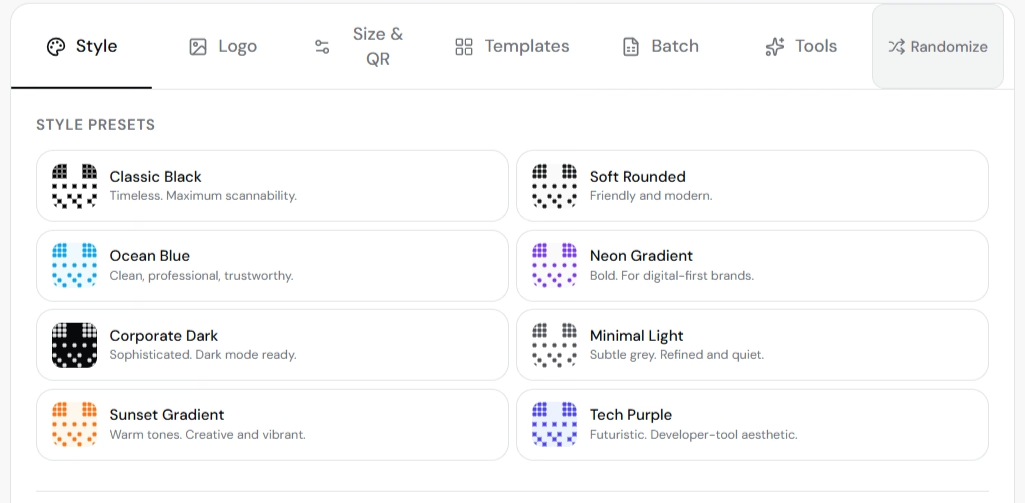
Use a preset as a starting point, then continue refining the design if needed.
Step 3: Adjust dots, corners, colors, and scanability settings
Below the preset area, QR Forge provides more detailed design controls.
The example interface includes:
- Dot Style
- Corner Square
- Corner Dot
- Foreground
- Background
- Transparent background for PNG
- Enable gradient
In the example screenshot, the selected colors are:
- foreground:
#7c3aed - background:
#faf5ff
The scanability panel also shows useful feedback. In the example, QR Forge reports:
Good
5.3:1 contrast — scans reliably in good lighting.
Logo detected — use H error correction.
That guidance is important. Custom design is useful, but readability and scanability should stay the top priority.
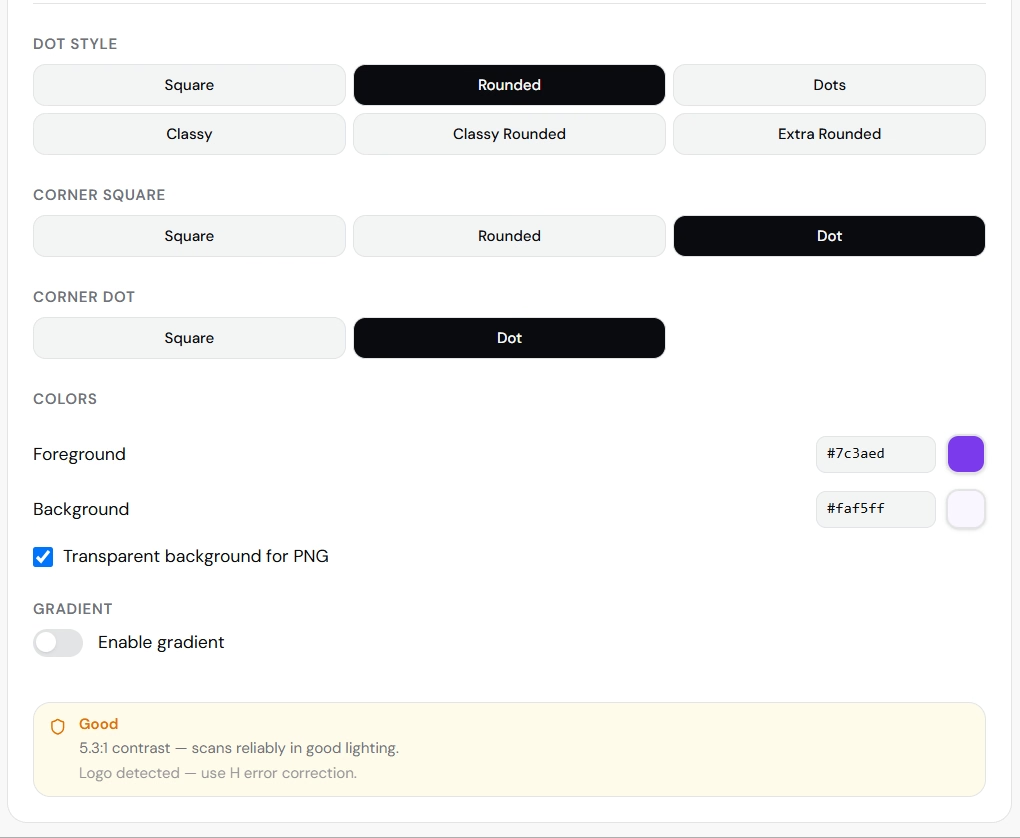
Refine the QR design carefully and pay attention to the scanability feedback shown by the generator.
If you add a logo or use non-default colors, always check the scanability feedback and test the final exported file on real devices.
Step 4: Review the Live Preview and export settings
Use the Live Preview panel to check the final QR code before downloading it.
The current preview panel shows:
- the final QR code
- Copy image
- Download PNG
- output format selector
- output size selector
- the beginning of the encoded vCard payload below the preview
In the example shown, the encoding preview begins with:
BEGIN:VCARD VERSION:3.0 ...
This helps confirm that the QR code is being generated as a contact card instead of plain text.
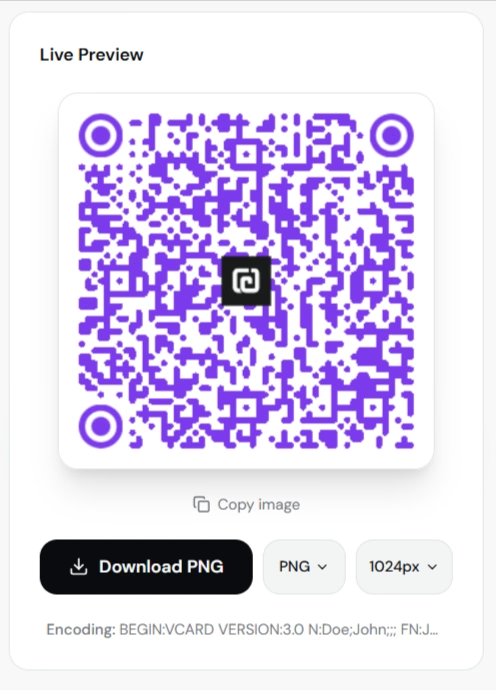
Review the live preview and export settings before downloading the final QR code.
Step 5: Download the QR code
Use the export controls in the Live Preview panel to save the QR code.
Before downloading, review the selected format and image size. Choose settings that match the final use case, such as a business card, printed flyer, event badge, or digital profile asset.
Step 6: Test the final QR code
After downloading, scan the QR code with a phone and confirm that:
- a contact preview opens
- the first and last name are correct
- the phone number is correct
- the email address is correct
- the website is correct
- the organization is correct
- the address is correct
- the user can save the contact successfully
If the QR code will be printed, test the printed version too.
How a vCard QR code works
The QR code stores structured contact data directly inside the QR pattern.
It uses a contact format
The encoded data is formatted as a vCard payload instead of plain text.
Compatible devices can recognize the format
When scanned, a phone may show a contact preview or contact import screen.
The user saves the contact
The user still reviews the information and decides whether to save it.
Does a vCard QR code save the contact automatically?
Usually no.
The QR code prepares the contact data
The device reads the fields stored in the QR code.
The phone shows a preview or import screen
This gives the user a chance to verify the details.
User confirmation still matters
The user should stay in control of whether the contact is saved.
What should you include in a vCard QR code?
Include the details that matter most for the intended contact workflow.
Common essentials
Most business or professional use cases should include:
- first name
- last name
- phone number
- email address
Useful additional fields
You may also want to include:
- organization
- website
- address
Keep it accurate
A vCard QR code is only useful if the details are current.
vCard QR code vs plain text contact details
A plain text QR code can display contact details, but it is less convenient.
Plain text QR code
The user may need to copy information manually.
vCard QR code
A compatible device can recognize the data as a contact and offer to save it directly.
Choose vCard for contact saving
If your goal is “Save my contact,” vCard is usually the better choice.
vCard QR code vs phone QR code
These QR types serve different goals.
vCard QR code
Best when the goal is to save a contact.
Phone QR code
Best when the goal is to place a direct call.
Choose based on the next action
If saving details matters more than immediate calling, vCard is the better fit.
vCard QR code vs email QR code
These are also different actions.
vCard QR code
Shares a complete contact profile.
Email QR code
Opens an email draft.
Use vCard for broader contact sharing
If you want to share multiple contact fields at once, vCard is more complete.
Do vCard QR codes work without internet?
Yes, in most cases.
The contact data is stored directly in the QR code
The phone can decode it locally.
Saving the contact normally does not require a web connection
The user can often preview and save the contact offline.
Internet may still matter for later actions
For example, visiting the contact’s website or sending an email would depend on connectivity.
For the broader explanation, read do QR codes work without internet.
Do vCard QR codes expire?
A static vCard QR code does not expire by itself.
The contact details must remain valid
If your number or email changes, the QR code still contains the old details.
Printed materials stay static
They do not update automatically.
New contact details require a new QR code
If your information changes, generate a replacement QR code.
Can you edit a vCard QR code later?
Not if it is static.
The contact data is encoded directly
Changing any field changes the QR payload.
A new payload means a new QR code
If the name, phone number, email, or other details change, create a new QR code.
Read can you edit a QR code after creating it.
vCard QR codes for business cards
This is one of the most common use cases.
Business cards become easier to use
Instead of retyping details, the person scanning can save the contact quickly.
It reduces typing errors
People do not need to re-enter your phone number or email address manually.
It works well with printed networking materials
This includes cards, badges, and conference handouts.
vCard QR codes for events and conferences
Event professionals and speakers can use vCard QR codes to make follow-up easier.
Speaker profiles
Attendees can save the speaker’s contact details after a session.
Booth staff
Expo visitors can save a rep’s contact information quickly.
Networking events
A vCard QR code can support fast contact exchange without typing.
vCard QR codes for portfolios and personal brands
Freelancers, consultants, and creators can use a vCard QR code in printed and digital materials.
Printed portfolio pages
Readers can save your contact details from a printed page.
Proposal documents
A vCard QR code can make it easier for prospects to contact you later.
Personal brand assets
It can also work on presentation slides, brochures, or desk signage.
vCard QR code privacy
The contact information inside the QR code is not private.
Anyone who sees the QR code can inspect it
A public QR code can expose the included contact details.
Use business details when possible
This is safer than publishing highly personal private contact information.
Think before including an address
Only include an address if it is appropriate to share publicly.
vCard QR code security
A vCard QR code is a convenience tool, not a security layer.
The data can be copied
A QR code can be photographed or reused.
Do not treat it as a protected container
Only include information you are comfortable sharing with the intended audience.
How to make a vCard QR code easy to scan
Keep strong contrast
A clean contrast ratio improves reliability.
Preserve the quiet zone
Leave clear space around the QR code.
Avoid over-styling
A decorative QR code is only useful if it still scans reliably.
Use an appropriate size
If the QR code will be printed small, test it carefully.
Check scan guidance inside the generator
Warnings about contrast or logo use are worth reviewing before export.
How to test a vCard QR code
Test on iPhone
Scan the code and verify the contact preview.
Test on Android
Repeat the same test on another platform.
Verify every field
Check the name, phone, email, website, organization, and address.
Test the exported file
Do not rely only on the on-screen preview.
Test the printed version
If the code will appear on business cards or printed materials, scan the actual print.
Common vCard QR code mistakes
Wrong contact details
A typo in the phone number or email makes the QR code much less useful.
Using incomplete information
If the point is contact saving, make sure the essential fields are present.
Over-customizing the QR design
Heavy styling can reduce scanability if not tested.
No real-device testing
Always test on actual phones.
Including overly private details
Only include public-facing information you truly want to share.
Good calls to action for vCard QR codes
Examples include:
- Scan to save contact
- Scan to add my contact
- Scan to save my details
- Scan to connect
- Scan to save this contact
Choose a label that clearly tells the user what will happen.
How QR Forge handles vCard QR codes
QR Forge includes Contact as one of its QR Content Types.
Static generation
The contact fields are encoded directly into the QR code.
No account required
Basic supported QR generation does not require signup.
Customization tools
You can style the QR code, adjust colors, and refine the output in the same generator.
Live Preview
The interface lets you review the QR code while building it.
vCard QR code checklist
Contact details
- name is correct
- phone number is correct
- email address is correct
- website is correct
- organization is correct
- address is correct
- only intended public information is included
QR design
- strong contrast
- quiet zone preserved
- design remains scan-friendly
- export format is appropriate
- final image is sharp
Testing
- tested on iPhone
- tested on Android
- contact preview opens correctly
- all fields are correct
- exported file works
- printed version works
How to create a vCard QR code: final answer
The practical workflow is:
Choose Contact
-> Enter the contact details
-> Customize the QR design if needed
-> Review the live preview
-> Download
-> Scan and verify the contact save flow
A vCard QR code is best when you want people to save your contact details quickly and accurately.
Keep the information current, design the QR code for scanability first, and test the final exported version before printing or sharing it widely.
Create your vCard QR code
Generate a static contact QR code directly in your browser with no login or watermark.